DG Tool — Plan today. See it by project.

Type today’s tasks once. See the same list grouped by project. Drag to prioritize, check to complete—zero learning curve.

DG Tool — Plan today. See it by project.

Type today’s tasks once. See the same list grouped by project. Drag to prioritize, check to complete—zero learning curve.

How it works — A day with DG Tool
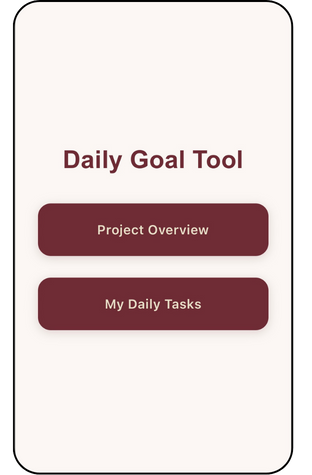
Pick Your View

Two buttons: My Daily Tasks (type & edit) and Project Overview (read-only dashboard grouped by project).

Start on “My Daily Tasks”. “Project Overview” is the read-only dashboard.

Add today’s tasks

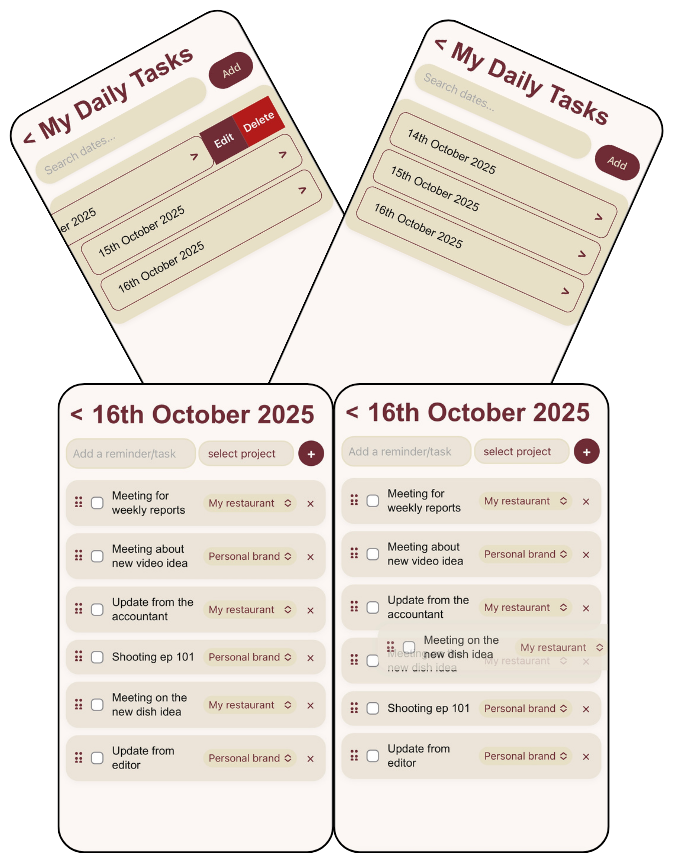
Open 16th October 2025 and list everything:

  • My restaurant: Meeting for weekly reports • Update from accountant • Meeting on the new dish idea
  • Personal brand: Meeting about new video idea • Shooting ep 101 • Update from editor Custom tools.

 Add tasks for the day → tag a project → drag to set priority.

Quick edits while you work

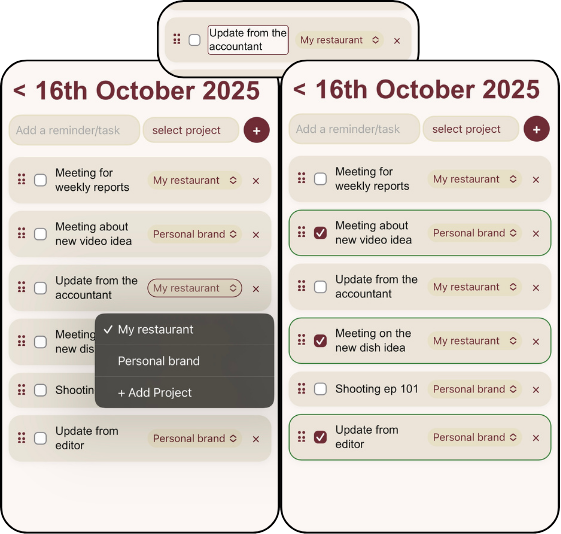
Double-tap to rename a task • change its project (or + Add Project) • check/uncheck • drag to reprioritize • or delete.

Example edits: re-tag Meeting for weekly reports; fix the new dish idea typo

Double-tap to edit • Change project • Check/Uncheck • Drag to reorder.

Switch to Project Overview for focus

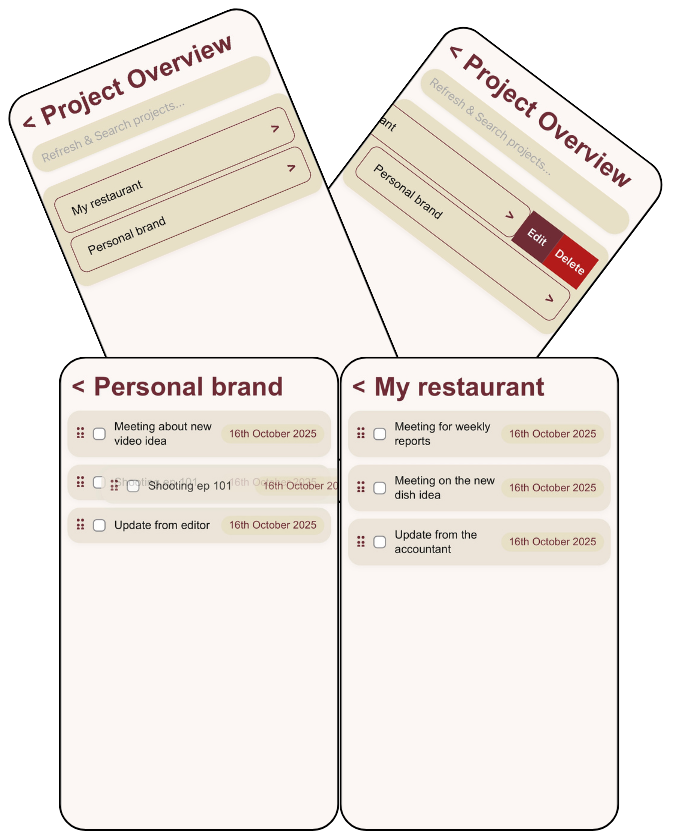
Two cards—My restaurant and Personal brand—show today’s tasks only in the order you set. Check/undo and drag here; edit wording/dates back on Daily Tasks.

 Today’s tasks, grouped by project. (Edits happen on Daily Tasks.)

Stays in sync automatically

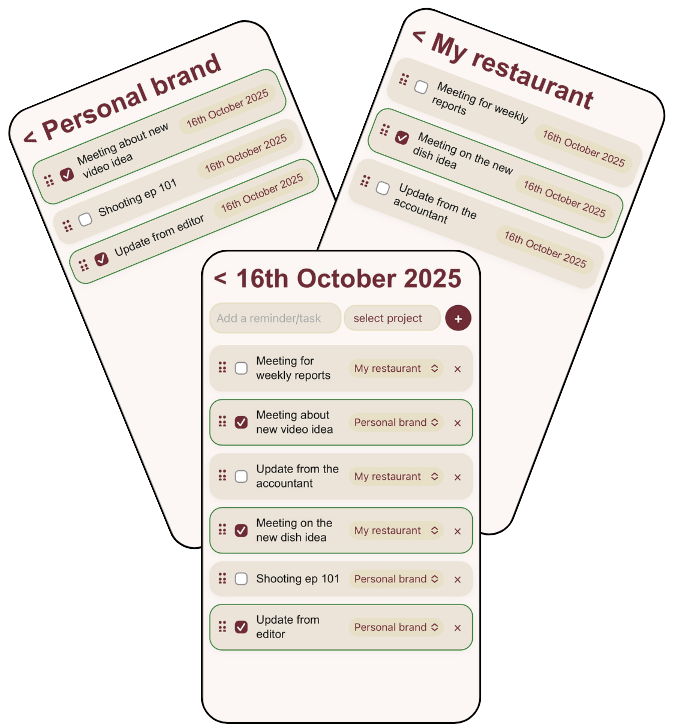
Check three items on Daily Tasks:

✅ Meeting about new video idea • ✅ Update from editor • ✅ Meeting on the new dish idea.

Open Project Overview → both project cards already show them done—no double entry.

Daily changes instantly update Project Overview • Update once—both views reflect it.

How it works

Pick Your View

Two buttons: My Daily Tasks (type & edit) and Project Overview (read-only dashboard grouped by project).

Start on “My Daily Tasks”. “Project Overview” is the read-only dashboard.

Add today’s tasks

Open 16th October 2025 and list everything:

  • My restaurant: Meeting for weekly reports • Update from accountant • Meeting on the new dish idea
  • Personal brand: Meeting about new video idea • Shooting ep 101 • Update from editor Custom tools.

 Add tasks for the day → tag a project → drag to set priority.

Quick edits while you work

Double-tap to rename a task • change its project (or + Add Project) • check/uncheck • drag to reprioritize • or delete.

Example edits: re-tag Meeting for weekly reports; fix the new dish idea typo

Double-tap to edit • Change project • Check/Uncheck • Drag to reorder.

Switch to Project Overview for focus

Two cards—My restaurant and Personal brand—show today’s tasks only in the order you set. Check/undo and drag here; edit wording/dates back on Daily Tasks.

 Today’s tasks, grouped by project. (Edits happen on Daily Tasks.)

Stays in sync automatically

Check three items on Daily Tasks:

✅ Meeting about new video idea • ✅ Update from editor • ✅ Meeting on the new dish idea.

Open Project Overview → both project cards already show them done—no double entry.

Daily changes instantly update Project Overview • Update once—both views reflect it.

Make today crystal clear in minutes.

One entry • Two views • No steep learning curve • Plan the day • view by project • finish what matters.

We’ll tailor fields, exports, and features to your workflow.
and we’re happy to take any suggestion